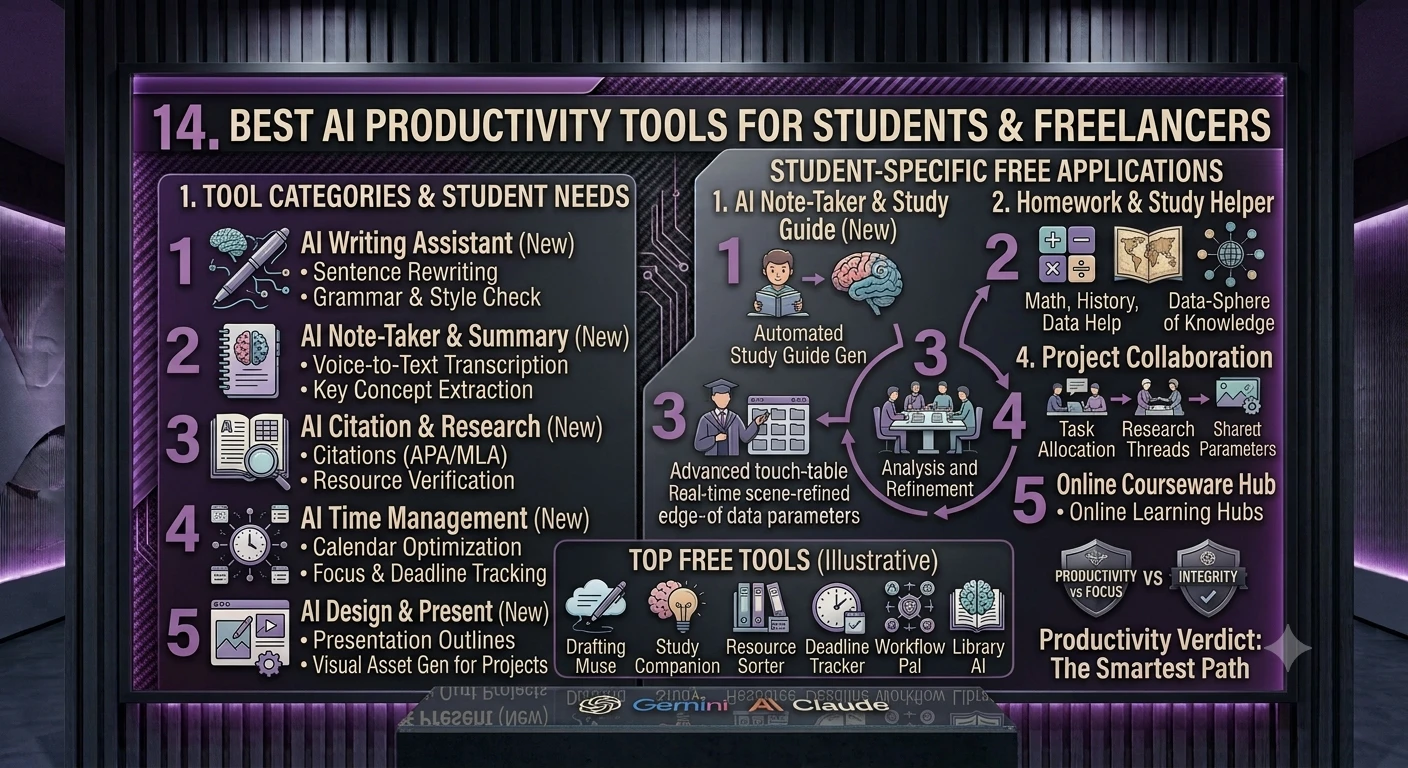
Students juggle assignments, research, and study schedules. Freelancers juggle client work, invoices, and their own marketing — usually alone. Here are the AI tools that genuinely save time for both groups.
1. Why AI Productivity Tools Matter for Students & Freelancers
Both students and freelancers share a common problem: too many small tasks eating into the time meant for the actual work that matters — studying, learning, or delivering client projects. AI tools don't replace that core work, but they remove a lot of the friction around it: organizing notes, summarizing long readings, drafting first-pass emails, scheduling across time zones, and generating invoices.
Adoption has grown quickly — AI productivity tools are now considered a normal part of daily work for students, freelancers, and teams alike, not a novelty.
Source: Simplilearn, DEV Community 2026 AI productivity roundups.
2. Category 1 — AI Writing & Research Assistants
These are the tools most people open first — for drafting essays, emails, proposals, and for digging through research quickly.
- ChatGPT — a general-purpose assistant for writing, research, coding help, and summarizing documents; free plan available, ChatGPT Plus around $20/month for expanded features
- Claude — strong for longer-form writing, careful editing, and synthesizing research into clear summaries
- Perplexity AI — a research-first tool that answers questions with cited sources, useful for gathering credible information for papers or client research
- Grammarly — checks grammar, tone, and clarity, and can rewrite sentences for clearer or more professional-sounding emails and assignments
For academic work, always verify AI-generated facts and citations independently — these tools can state things confidently that turn out to be wrong.
3. Category 2 — Note-Taking, Docs & Knowledge Management
AI-powered workspaces combine note-taking with built-in assistants that can summarize, draft, or answer questions about your own documents.
- Notion AI — built into the Notion workspace; can summarize meeting notes, auto-fill databases, draft content, and answer questions using your own notes and documents as context
- Microsoft Copilot / Google Gemini (in Docs/Workspace) — AI assistance built directly into the word processor or spreadsheet you're already using, for drafting and summarizing without switching apps
4. Category 3 — Meeting Notes & Transcription
Freelancers sit in client calls; students sit in lectures and group project meetings. AI transcription tools turn spoken conversation into searchable text and summarized action items automatically.
- Otter.ai — joins or records meetings/lectures, transcribes them live, and generates a summary with key points and action items afterward
- Other AI meeting assistants — many video-call platforms now include a built-in AI note-taker that generates a summary and action-item list right after the call ends
Getting started Start the recorder/transcriber at the beginning of the lecture or client call. Let it run in the background — no manual note-taking needed during the conversation. Review the AI summary afterward and correct any misheard names, numbers, or technical terms. File the transcript and summary in your notes app (e.g., Notion) for future reference.
Always ask permission before recording a client call or a group meeting — this matters both professionally and, in many places, legally.
5. Category 4 — Study Tools (Student-Specific)
Beyond general writing assistants, students have some specific needs: understanding dense readings, studying for exams, and managing academic research.
- AI "chat with PDF" tools — upload a textbook chapter or research paper and ask it questions directly, instead of re-reading the whole document to find one answer
- AI research-paper summarizers — condense long academic papers into key findings and methodology summaries, useful for literature reviews
- AI flashcard/quiz generators — turn your notes into practice questions automatically for exam review
Use these tools to understand material faster, not to skip understanding it — professors and exams will still test whether you actually learned the content.
6. Category 5 — Task, Project & Schedule Management
Freelancers managing multiple clients and students juggling multiple deadlines both benefit from AI layered on top of a task manager or calendar.
- Notion AI / ClickUp AI — auto-generate project plans, break large tasks into subtasks, and summarize project status
- AI scheduling assistants — suggest meeting times across time zones and can auto-schedule calls based on your calendar availability
7. Category 6 — Workflow Automation
Automation tools are often the most underrated productivity category — they handle repetitive, rule-based tasks entirely in the background.
- Zapier AI — connects different apps together (e.g., "when I get a new client email, create a task in my project tool automatically") and can now use AI steps to decide how to route information
- AI email sorting/prioritization — automatically sorts and flags emails by urgency or client, cutting down inbox triage time
Getting started List your 3–5 most repetitive weekly tasks (e.g., "forward invoices to my accountant," "add new client inquiries to my CRM"). Check whether an automation tool like Zapier already has a template ("Zap") for that exact task. Set it up once and test it with a real example before relying on it fully. Review automated actions weekly at first to make sure they're working the way you expect.
8. Category 7 — Design & Presentation Tools
Both students (presentations, posters) and freelancers (client decks, social posts, portfolio pieces) regularly need quick, professional-looking visuals without design training.
- Canva AI — templates plus AI image generation and "Magic" editing tools; the default choice for fast, professional visuals without design skills
9. Category 8 — Freelancer-Specific Tools (Invoicing, Proposals, Clients)
Freelancers have business-side tasks students don't usually deal with — invoicing, contracts, and client communication — and several AI-assisted tools now target this specifically.
- AI invoice generators — free tools that auto-calculate totals, taxes, and due dates, and can generate a professional invoice from a short description of the work completed
- AI proposal/contract drafting — general writing assistants (ChatGPT, Claude) can draft a first-pass client proposal or scope-of-work document based on a project brief, which you then customize
- AI-assisted CRM tools — track client conversations and follow-ups, with AI summarizing where each relationship or deal currently stands
Always have a human (you, or a professional if the contract is high-value) review any AI-drafted contract or proposal before sending it — AI can miss legal nuance or misstate scope.
10. Full Comparison Table by Category
| Category | Top Tools | Best For |
|---|---|---|
| Writing & Research | ChatGPT, Claude, Perplexity, Grammarly | Drafting, research, editing |
| Notes & Docs | Notion AI, Copilot/Gemini in Docs | Organizing notes, drafting in-app |
| Meetings | Otter.ai, built-in call AI notetakers | Transcripts, summaries, action items |
| Study Tools | Chat-with-PDF tools, flashcard generators | Understanding readings, exam prep |
| Task/Project Mgmt | Notion AI, ClickUp AI | Breaking down tasks, tracking deadlines |
| Automation | Zapier AI | Connecting apps, repetitive tasks |
| Design | Canva AI | Presentations, decks, social visuals |
| Freelance Business | AI invoice tools, ChatGPT/Claude for proposals | Invoicing, contracts, client comms |
S 11 Sample Stack: A Student's Weekly Workflow
- Record lectures with Otter.ai for a searchable transcript and summary.
- Organize class notes and readings in Notion AI, using it to summarize long chapters before exams.
- Use ChatGPT or Claude to brainstorm essay outlines and get feedback on drafts (never to write final submissions wholesale).
- Use a chat-with-PDF tool to quickly find specific information inside long research papers.
- Use Grammarly for a final grammar/clarity pass before submitting any written assignment.
F 12 Sample Stack: A Freelancer's Weekly Workflow
- Use Otter.ai or a call platform's built-in notetaker for every client call, so nothing gets missed.
- Draft client proposals and scope-of-work documents with ChatGPT or Claude, then customize by hand.
- Track projects and deadlines across clients in Notion AI or ClickUp AI.
- Automate repetitive admin (e.g., invoice reminders, lead intake) with Zapier AI.
- Generate invoices with an AI invoicing tool once a project milestone is complete.
- Use Canva AI for quick client-facing decks, social posts, or portfolio graphics.
13. How to Choose Tools Without Overspending
- Start with free tiers — most tools in this guide have a usable free plan; only upgrade once you hit a real, repeated limitation.
- Pick one tool per category rather than several overlapping ones — redundant subscriptions are the most common way this stack gets expensive.
- Students: check whether your school offers free or discounted access to tools like Notion, Grammarly, or Microsoft/Google's AI features through an institutional plan.
- Freelancers: treat tool subscriptions as a business expense to track, and periodically cancel anything you haven't opened in the past month.
14. Common Mistakes to Avoid
- Submitting AI-written academic work as your own without disclosure — check your school's AI policy first, since this varies widely and consequences can be serious.
- Trusting AI-generated facts, citations, or case law without independently verifying them.
- Recording client calls or lectures without asking permission first.
- Signing up for too many overlapping tools instead of a lean, purposeful stack.
- Sending an AI-drafted contract or proposal to a client without reviewing it yourself first.
- Letting automation run unchecked for weeks without reviewing whether it's still doing what you intended.
15. Quick-Start Checklist
- Pick one AI writing/research assistant (ChatGPT or Claude) and use it for a week before adding more tools.
- Set up a notes workspace (Notion AI or your existing docs app's built-in AI) for ongoing organization.
- Add a meeting/lecture transcription tool if you regularly sit in calls or classes.
- Students: add a chat-with-PDF tool for dense readings and a flashcard generator for exam prep.
- Freelancers: add an AI invoicing tool and one automation (Zapier) for your most repetitive admin task.
- Add Canva AI once you need presentations, decks, or social visuals regularly.
- Review your tool list monthly — cancel anything unused, and only add a new tool when a specific bottleneck appears.
Compiled from current 2026 industry roundups (Simplilearn, DEV Community). Tool pricing, free-tier limits, and feature sets change frequently — verify current details on each platform, and check your school's AI-use policy before using these tools for graded academic work.