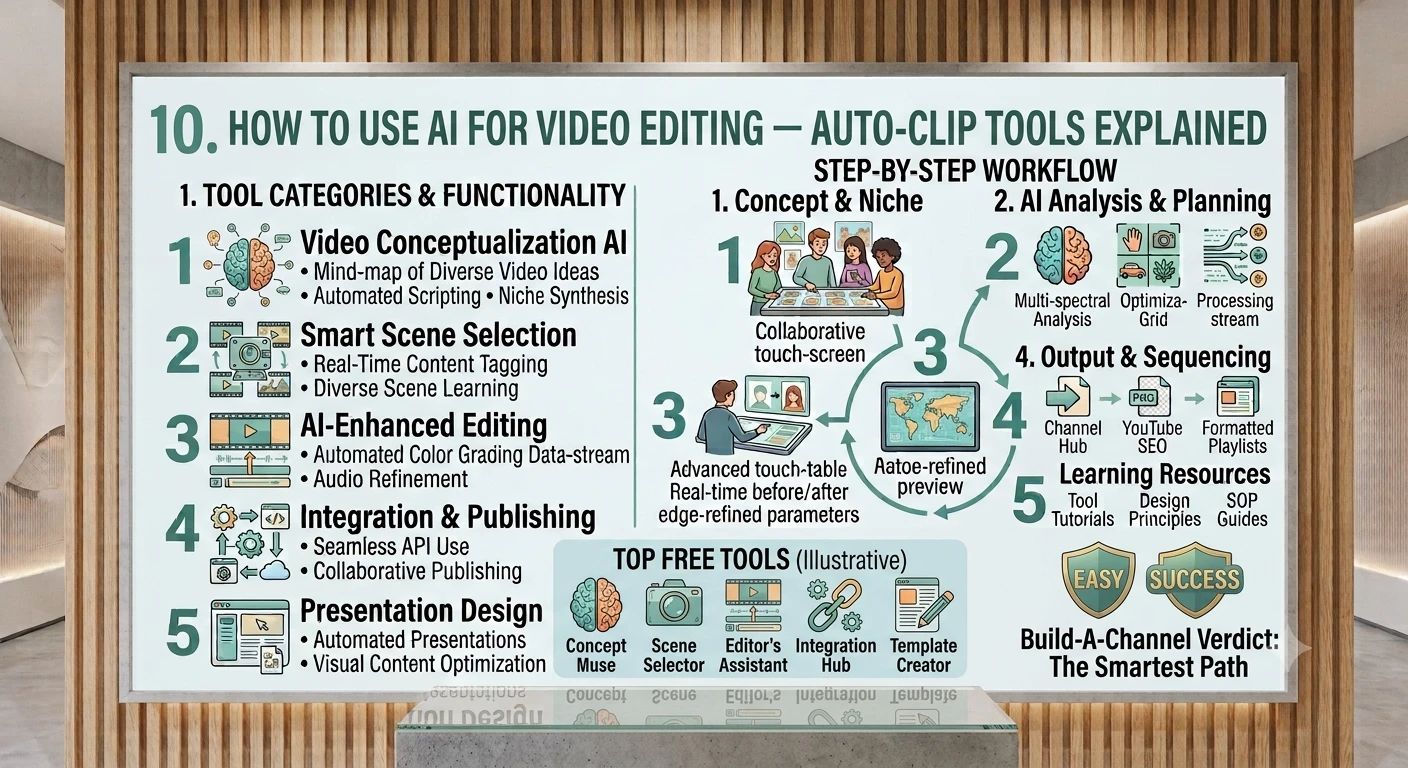
How auto-clipping AI tools work, and when they actually save you real editing time.
1. What Is AI Video Editing and 'Auto-Clip' Technology?
AI video editing tools use machine learning to analyze raw footage — audio, speech, faces, motion, and on-screen text — and automatically perform tasks that used to require a human editor: cutting out silences, adding captions, finding the most engaging moments, and reframing footage for different screen sizes. 'Auto-clip' specifically refers to tools that scan a long video (like a podcast, webinar, or vlog) and automatically pull out short, self-contained highlight clips ready for Shorts, Reels, or TikTok.
In short: you upload one long video, and the AI hands you back a finished long-form edit plus several short clips — without you scrubbing through hours of footage by hand.
2. How Auto-Clip Tools Actually Work (Behind the Scenes)
Auto-clip tools generally combine several AI models working together:
- Speech-to-text transcription — converts your spoken audio into a searchable text transcript
- Semantic/topic analysis — an AI language model reads the transcript to find self-contained ideas, questions, stories, or emotional peaks
- Engagement scoring — some tools rank moments by predicted 'virality' based on pacing, sentiment, laughter, pauses, or keyword density
- Speaker & face detection — identifies who is talking and keeps them centered when reframing to vertical video
- Scene/shot detection — detects cuts, camera angle changes, or slide changes to avoid clipping mid-sentence or mid-scene
The AI doesn't truly 'understand' your content the way a human editor does — it's pattern-matching on transcripts and audio/visual signals. That's why your review step (Step 5) matters.
3. Two Types of AI Editing Tools You Need to Know
A. Full-Video Auto-Editors
These take your raw footage and assemble a complete long-form video: removing filler words and dead air, adding music, transitions, and captions, sometimes even matching stock B-roll to your spoken words. Examples: Descript, CapCut, Adobe Premiere Pro's AI features, Pictory.
B. Auto-Clip / Repurposing Tools
These specialize in scanning a long video (podcast, livestream, interview, webinar) and extracting multiple short, vertical, captioned clips optimized for Shorts, Reels, and TikTok. Examples: Opus Clip, Vidyo.ai, Munch, Klap.
Many creators use both: a full-editor for the main video, then an auto-clip tool to repurpose it into short-form content afterward.
4. Step 1 — Preparing Your Raw Footage
1. Record in the highest resolution your camera/software allows (1080p minimum, 4K preferred) — auto-clip tools crop into vertical frames, so extra resolution avoids blur.
2. Use a decent external or lapel microphone if possible — AI transcription accuracy depends heavily on clear audio. 3. Keep the speaker's face visible and reasonably centered on camera — this helps auto-reframing tools track and crop correctly. 4. If recording an interview/podcast, use separate audio/video tracks per speaker if your software allows — this dramatically improves speaker detection.
5. Step 2 — Auto-Editing a Long-Form Video
Using a tool like Descript or CapCut:
- Upload your raw footage — the tool automatically transcribes the audio into text.
- Use 'remove filler words' or 'remove silences' — the AI detects 'um,' 'uh,' long pauses, and dead air, and lets you delete them by simply deleting the words in the transcript.
- Apply an auto-color/auto-audio-leveling pass if the tool offers one, to balance lighting and volume automatically.
- Add background music from the tool's built-in (royalty-free) library; most AI editors auto-duck music volume under your voice.
- Preview the full auto-edit and manually trim anything that feels awkward — the AI removes based on rules, not always on comedic or narrative timing.
6. Step 3 — Auto-Clipping Highlights Into Shorts/Reels/TikToks
Using a tool like Opus Clip, Vidyo.ai, or Klap:
- Upload your finished long-form video (or even a raw recording) — the tool transcribes it automatically.
- The AI scans the transcript and audio/video signals, then proposes a ranked list of clip candidates — often scored with a predicted 'virality' or engagement score.
- Review the suggested clips and select the ones that are genuinely self-contained (make sense without the rest of the video).
- The tool auto-reframes the clip to vertical (9:16), auto-generates burned-in captions, and often adds a short auto-generated hook title/headline.
- Export each selected clip individually.
Aim to get 3–8 short clips out of one 20–60 minute long-form video — a strong ratio for most talk-based content.
7. Step 4 — Auto-Captions, Subtitles & Reframing
Captions are essential — most viewers watch with sound off.
- Auto-captions are generated from the same speech-to-text transcript used for editing — double-check names, brand terms, and numbers, which AI often mis-transcribes
- Choose a caption style (word-by-word 'karaoke' captions currently perform well on Shorts/Reels/TikTok for retention)
- Auto-reframing tools use face-tracking to keep the speaker centered when converting 16:9 landscape footage to 9:16 vertical — check for moments where it crops out important on-screen text or a second speaker
8. Step 5 — Fine-Tuning the AI's Output (Don't Skip This)
AI auto-edits and auto-clips are a strong first draft, not a final product. A quick human review pass consistently improves performance:
- Watch every clip start-to-finish before publishing — check the hook (first 1–2 seconds) grabs attention
- Fix any caption typos or mis-transcribed words, especially names and numbers
- Trim awkward AI cut points that split a sentence or joke in the wrong place
- Make sure the clip has a complete thought — cut off mid-sentence clips hurt watch time
- Adjust or replace AI-suggested titles/hooks if they sound generic or clickbaity in a way that doesn't match the content
9. Step 6 — Exporting for Each Platform
| Platform | Aspect Ratio | Recommended Length |
|---|---|---|
| YouTube Shorts | 9:16 vertical | Under 60 sec |
| Instagram Reels | 9:16 vertical | 15–90 sec |
| TikTok | 9:16 vertical | 15 sec – 3 min |
| YouTube (long-form) | 16:9 horizontal | 8–20+ min |
| LinkedIn video | 1:1 or 16:9 | 30 sec – 3 min |
Export each clip natively for its platform rather than uploading the same file everywhere — correct aspect ratio and length matter for how each platform's algorithm distributes your content.
10. Complete Auto-Clip & AI Editing Tool Stack
Full-Video AI Editors
- Descript — edit video by editing text; strong filler-word/silence removal
- CapCut — free, mobile + desktop, auto-captions, templates, sound effects library
- Adobe Premiere Pro (AI features) — professional-grade, has AI-assisted scene edit detection
- Pictory — turns scripts/articles into fully edited videos with stock footage
Auto-Clip / Repurposing Tools
- Opus Clip — one of the most popular, scores clips by predicted virality
- Vidyo.ai — good for podcasts and long interviews
- Klap — strong auto-reframing and caption styling
- Munch — repurposing plus scheduling/publishing features
Supporting Tools
- YouTube Audio Library — free, copyright-safe background music and sound effects
- Canva — quick thumbnail or cover-frame design for clips
11. Tool Comparison Table
| Tool | Best For | Free Tier? |
|---|---|---|
| Descript | Editing by transcript, podcasts | Yes (limited) |
| CapCut | All-around free editing + captions | Yes |
| Opus Clip | Auto-clipping long videos into Shorts | Yes (limited) |
| Vidyo.ai | Podcast/interview repurposing | Trial only |
| Klap | Auto-reframe + styled captions | Yes (limited) |
| Pictory | Script/article-to-video | Trial only |
Recommended Gear for Clean Source Footage
Auto-clip tools work best when the raw footage is already clean — good audio and stable, well-lit video means less AI correction needed later. Here's a Best pick and a Best Value pick for each essential.
Some links above are affiliate links — if you buy through them, we may earn a small commission at no extra cost to you. Prices and availability can change, so double-check the listing before purchasing.
12. Sample Workflow: One Podcast 10 Pieces of Content
- Record a 40-minute podcast/interview in 1080p+ with clean audio (5 min setup)
- Run the raw file through Descript or CapCut to auto-remove silences and filler words (15–20 min)
- Export the cleaned long-form episode and publish it to YouTube/podcast platforms (10 min)
- Upload the same cleaned file to Opus Clip or Vidyo.ai (5 min)
- Review the AI's 8–10 suggested highlight clips and select the best 5–6 (15 min)
- Check captions for errors, trim awkward cuts, adjust auto-generated hook text (20 min)
- Export each clip natively for YouTube Shorts, Reels, and TikTok (10 min)
- Schedule the clips across the week using a scheduler, rather than posting all at once (10 min)
Total time: roughly 1.5–2 hours to turn one recording session into a week's worth of content.
13. Common Mistakes to Avoid
- Publishing AI-selected clips without watching them fully — the AI sometimes cuts mid-thought
- Ignoring caption accuracy — mis-transcribed names/numbers look unprofessional
- Uploading the same 16:9 file to vertical platforms instead of using proper auto-reframing
- Relying only on the AI's 'top-ranked' clip and ignoring others that may fit your audience better
- Skipping the long-form upload and only posting clips — long-form content still drives subscriber growth and ad revenue on YouTube
- Overusing flashy transitions/effects the AI suggests, which can distract from the message
14. Quick-Start Checklist
- Record raw footage in 1080p+ with clear audio
- Run it through a full-video AI editor to remove filler words/silences
- Publish the cleaned long-form video
- Feed the same file into an auto-clip tool
- Select 3–8 of the best AI-suggested clips
- Review captions, hooks, and cut points manually
- Export natively for each platform's aspect ratio
- Schedule clips across the week instead of posting all at once
End of guide. Tool names, pricing, and free-tier limits change over time — always check each platform's current details before relying on them.